Showing posts with label HTML 5 Tutorials. Show all posts

HTML 5 Local Storage best practices with demo

  • The Local storage in HTML5 is used to store data on client side.
  • The Local storage stores the saved data on a user's computer even after closing the browser window.
  • We need to be careful while using Local storage, as it could slow down your site.
  • In this article we will see how not to use Local storage.
Following points we need to consider while using local storage
  • Do not serialize unnecessarily
  • Do not use excessive keys
  • Do not use excessive gets/sets
  • Do not block the UI
  • Do not assume local storage will always work
  • Do not use key names that collide

Do not serialize unnecessarily

Before
        function store(key, val) {
            localStorage.setItem(key, JSON.stringify(val));
        }
            store('num', 1);
            store('on', true);
            store('name', 'HTML5');
    
After
        function store(key, val) {
          localStorage.setItem(key, val);
        }
        store('num', '1');
        store('on', 'true');
        store('name', 'HTML5');
    

Use the string where possible avoiding serializing most of the time.

Do not use excessive keys

Before
        localStorage.setItem('first', 'HTML5');
        localStorage.setItem('middle', 'Storage');
        localStorage.setItem('last', 'Local Storage');
    

After
        localStorage.setItem('name', 'Local Storage');
    

Always avoid creating multiple keys when you can have single for multiple data.

Do not use excessive gets/sets

Before
        $('input[type="checkbox"]').click(function() {
          localStorage.setItem($(this).attr('name'), $(this).is(':checked'));
        });
    

After
        window.onunload = function() {
          $('input[type="checkbox"]').each(function() {
            localStorage.setItem($(this).attr('name'), $(this).is(':checked'));
          });
        };
    
Do cache data in local memory or the DOM, and only get/set on window load/unload.

Do not block the UI

Before
        <head>
        <script>
            $('#name').html(localStorage.getItem('name'));
        </script>
        </head>
    
After
        <html>
        <body></body>
        <script>
            window.onload = function () {
                $('#name').html(localStorage.getItem('name'));
            };
        </script>
        </html>
    

Do defer or avoid using localStorage until onload.

Before

        $('button').click(function() {
          var name = localStorage.getItem('name');
          $('#name').html(name);
        });
    

After
        $('button').click(function() {
          window.setTimeout(function() {
            var name = localStorage.getItem('name');
            $('#name').html(name);
          }, 10);
        });
    

Do use setTimeout to defer localStorage access.

Before

        $('textarea').keydown(function() {
          localStorage.setItem('text', $(this).text());
        });
    

After
        $('textarea').keydown(function() {
          $.debounce(250, function() {
            localStorage.setItem('text', $(this).text());
          });
        });
    

Do not assume local storage will always work
Bad
        localStorage.setItem('Hello', 'World');
    

Better
        if (window.localStorage) {
          localStorage.setItem('Hello', 'World');
        }
    

Best
        if (window.localStorage) {
          try {
            localStorage.setItem('Hello', 'World');
          } catch(e) {
            if (e.name === 'QUOTA_EXCEEDED_ERR' || e.name === 'NS_ERROR_DOM_QUOTA_REACHED') {
            } else {
            }
          }
        }
    

Do check for feature support, writeable, and quota.

Do not use keys that collide

Before
        localStorage.setItem('name', 'HTML5');
    
After
        localStorage.setItem('first-name', 'HTML5');
    
Do use highly descriptive keys and avoid using keys that collide.
Database Storage in HTML5 with demo

  • HTML5 provides database storage to store data on client's machine using a Structured Query Language (SQL) database.
  • It uses a temporary database to store data for a specified period of time.
  • In order to use this feature we need to open database connection, then we can execute SQL queries on database using two basic functions i.e. transaction() and executeSql().
Opening an connection

        var db = openDatabase('HTML5DB', '1.0', 'Client Side DB', 50 * 1024 * 1024);

        //With Callback Function
        var db = openDatabase('HTML5DB', '1.0', 'Client Side DB', 50 * 1024 * 1024, function () {
                alert("DB Created");
            });
    
The preceding code snippet creates a database object, db, with the title HTML5DB, a version number of 1.0, along with a description and approximate size and callback function in later one.

We need to pass basic four arguments to the openDatabase method and callback function if needed.


  • Database name
  • Version number
  • Text Description
  • Size (Approx)
  • Callback 

The callback function is called when the database is being created. The return value from the openDatabase method contains the transaction methods needed to perform SQL operations (queries) on database.
If you try to open a database that doesn’t exist, the API will create it on the fly for you. You also don’t have to worry about closing databases.

Size

The default database size is 5MB for borwsers. The Safari browser shows prompt if user tries to create database exceeding the default database size.


Version
The version number is required argument to openDatabase. 
You can change or update version of database using changeVersion method.
Using this method we can know which version of database user is using and then we can upgrade. The changeVersion method is supported only in chrome and opera.


Transaction
In very simple words Transaction is a single unit of work. If a transaction is successful, all of the data modifications made during the transaction are committed and become a permanent part of the database. If a transaction encounters errors and must be canceled or rolled back, then all of the data modifications are erased.
  The ability to rollback if some error occurs is why we use transaction for executing sql queries. There are also error ans success callbacks on the transaction, so you can manage errors.
    //A simple transaction
        db.transaction(function (tx) {
        //using tx object we can execute multiple sql queries.
                tx.executeSql("CREATE TABLE IF NOT EXISTS EMPLOYEE (id unique,name Text)");
            });
    
In the preceding code snippet we have used transaction and used executeSql method inside transaction. The above SQL query creates a table EMPLOYEE.

executeSql method

The executeSql method is used to execute a SQL query on database.
The executeSql method takes four arguments:

1. a string query.

2. an array of strings to insert the values for place holders in string query.
3. success callback function.
4. failure calback function.

Its a good practice to use SQL quesries or executeSql method inside transaction.


Query to Create Table

    $("#CreateTable").click(function () {
            db.transaction(function (tx) {
                tx.executeSql("CREATE TABLE IF NOT EXISTS EMPLOYEE (id unique,name Text)", [], function () {
                    alert("Table Created");
                }, function () {
                    alert("Error");
                });
            });
        });
    

The preceding code snippet creates a table EMPLOYEE with id and name as parameter. We have also defined callback functions for success and failure of executeSql method.

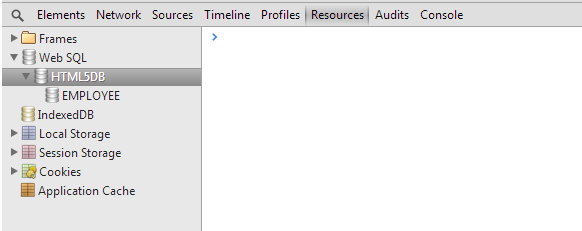
You can check chrome's developer tool to verify the Database and Table creation. You can verify this under Resources tab.


We have created EMPLOYEE table under HTML5DB database. We can verify the table created under Web SQL.

Insert Record

$("#InsertRecord").click(function () {
            db.transaction(function (tx) {
                tx.executeSql("INSERT INTO EMPLOYEE (id,name) VALUES (1,'Jack Wilshere')", [], function () {
                    alert("Record Inserted");
                }, function () {
                    alert("Error");
                });
            });
        });
    
The preceding code snippet inserts a record in the EMPLOYEE table.

Suppose we want to capture the table data to insert from external source, then we can use the second parameter i.e. inserting the values in the table supplying values to the placeholder defined in the query.

        var id = "2";
        var name = "Thierry Henry";

        $("#InsertRecord").click(function () {
            db.transaction(function (tx) {
                tx.executeSql("INSERT INTO EMPLOYEE (id,name) VALUES (?,?)", [id, name], function () {
                    alert("Record Inserted");
                }, function () {
                    alert("Error");
                });
            });
        });
    
In the preceding code snippet we have defined placeholders in the query. We are then passing values to the placeholder to insert data into the table. The executeSql method's second argument maps the field data to the query.
   id and name are external variables, and executeSql maps each item in the array argument to the “?”s.

Display Records

        $("#SelectRecord").click(function () {
            db.transaction(function (tx) {
                tx.executeSql('SELECT * FROM EMPLOYEE', [], function (tx, results) {
                    var len = results.rows.length, i;
                    var ulEle = $("<ul/>");
                    for (i = 0; i < len; i++) {
                        ulEle.append("<li>" + results.rows.item(i).name + "</li>");
                    }
                    $("#targetDiv").append(ulEle);
                });
            });
        });
    
In the preceding code snippet we have used select query to select all the records from the table and displayed on UI. We have created a UL element and then appened LI elements to UL element.

We need to use the column name after the item object to access the value of that column.


For Example

In order to get name column's value we should use it like below:
results.rows.item(i).name


Deleting a Record
        $("#DeleteRecord").click(function () {
            db.transaction(function (tx) {
                tx.executeSql("DELETE FROM EMPLOYEE WHERE id=1", [], function () {
                    alert("Record Deleted");
                }, function () {
                    alert("Error");
                });
            });
        });
    
In the above code snippet we have used Delete statement to delete record with id =1 from EMPLOYEE table.

Dropping a Table

        $("#DropTable").click(function () {
            db.transaction(function (tx) {
                tx.executeSql("DROP TABLE EMPLOYEE", [], function () {
                    alert("Table Deleted");
                }, function () {
                    alert("Error");
                });
            });
        });
    
In the preceding code snippet we have delete EMPLOYEE table from the HTML5DB database.

This is all about Database storage in HTML5, enough to start on Database storage.


Local Storage in HTML5 with demo

  • The local storage is same as session storage, except the feature of persistency.
  • Local storage can be said as persistent version of sessionStorage object.
  • The sessionStorage stores the data till the duration of a browser tab session, while the local storage stores the saved data on a user's computer even after closing the browser window.
Demo

Comparing with cookies

Cookies indeed can be used for persistent local storage of small amounts of data. They have following downsides:

  • Cookies are included with every HTTP request, thereby slowing down the web application by needlessly transmitting the same data again and again.
  • Cookies are included with every HTTP request, thereby sending data unencrypted over the internet (unless your application is served over SSL). 
  • Cookies are limited to about 4KB of data, not enough to use for large data.

What Local storage provides

  • A lot of storage space on client.
  • The data stored persist beyond a page refresh.
  • The data stored using local  storage is not transmitted to the server.

Storage API

Demo

  • getItem(key) - Returns a value on the basis of a specified key from the DOM storage area. If the key does not exist null is returned.
  • setItem(key,value) - Stores a string value along with a specified key inside the DOM storage area.
  • removeItem(key) - Removes a value on the basis of a specified key inside the DOM storage area.
  • key(index) - Returns the key of a value at the specified index.
  • clear() - Clears all data from the DOM storage area.

Below is the example for each storage API:

        localStorage.setItem("Name", "Thierry Henry");        // Store an string with the name "Name"
        localStorage.getItem("Name");           // Retrieve a value
 
        // Enumerate all stored name/value pairs
        for(var i = 0; i < localStorage.length; i++) {  // Length gives the # of pairs
            var name = localStorage.key(i);             // Get the name of pair i
            var value = localStorage.getItem(name);     // Get the value of that pair
        }
 
        localStorage.removeItem("Name");        // Delete the item "Name"
 
        localStorage.clear();                // Delete all keys from storage
 
        var count = localStorage.length;     // Gets the count of key-value pairs present in localStorage
    
Storage Events

Whenever the data stored in localStorage or sessionStorage changes, the browser triggers a storage event on any other Window objects to which that data is visible (but not on the window that made the change). If a browser has two tabs open to pages with the same origin, and one of those pages stores a value in localStorage, the other tab will receive a storage event. Remember that localStorage is scoped to the top-level window, so storage events are only triggered for localStorage changes when there are frames involved. Also note that storage events are only triggered when storage actually changes. Setting an existing stored item to its current value does not trigger an event, nor does removing an item that does not exist in storage.


Register a handler for storage events with addEventListener() (or attachEvent() in IE). In most browsers, you can also set the onstorage property of the Window object, but at the time of this writing, Firefox does not support that property.


The event object associated with a storage event has five important properties (they are not supported by IE8, unfortunately):


  • key The name or key of the item that was set or removed. If the clear() method was called, this property will be null.
  • newValue Holds the new value of the item, or null if removeItem() was called.
  • oldValue Holds the old value of an existing item that changed or was deleted, or null if a new item was inserted.
  • storageArea This property will equal either the localStorage or the sessionStorage property of the target Window object.
  • url The URL (as a string) of the document whose script made this storage change.


Avoid below with Local Storage

The local storage access is synchronous.The operations like JSON.parse or JSPN.stringify takes time which could slow donw your site.


  • Avoid serializing unnecessarily .
  • Do not use excessive keys.
  • Do not use excessive gets and sets.
  • Do not block the UI.
Local storage best practices

Session Storage in HTML5 with Demo

  • The sessionstorage object exists as a property of window object in supporting browsers. The sessionStorage object stores data that can persist for as long as window or tab is open.Even if you navigate away from page that stores the data and come back, the data saved to sessionStorage is still live.
  • The sessionStorage is scoped to the document origin. The document origin is defined by its protocol, hostname, and port. The data stored in sessionStorage is tied to protocol, hostname, and port of the page that saved the information and only the same pages sharing the same protocol, hostname, and port can access the data later.
  • The following urls has a different origins:
         http://www.sessionStorage.com        // Protocol: http;                                                                                      //hostname:www.example.com
         https://www.sessionStorage.com       // Different protocol
         http://static.sessionStorage.com     // Different hostname
         http://www.sessionStorage.com:8000   // Different port
  • All document with same origin shares the same local storage data. They can read and ovewrite each other's data. But the documents with different origins can never read or overwrite each other's data.
  • The sessionStorage is unique to a particluar window or tab. For example, suppose you open gmail in two different tabs of browser and application saves data in the sessionstorage. The data from the first tab is not accessible to other tab, even though the protocol, hostname, and port are exactly the same. Note that the sessionStorage is also scoped by browser vendor. If you visit a site using chrome and the visit the same using Firefox, then any data stored during first visit will not be accessible during the second visit.   
  • The window based scoping of sessionStorage is only for top-level windows. If one browser tab contains two iframe element, and those iframe holds two document with same origin, then those two framed documents will share the session storage.
  • The data stored in sessionStorage is deleted once the window or tab is closed, or if user request browser to do so. Such behaviour, with data tying to particular window or tab combined, ensures that the data does not get exposed or stored indefinitely.
  • The data stored to sessionStorage is saved in key-value pairs where both the key and value are strings.

Demo

Storage API

Demo

  • getItem(key) - Returns a value on the basis of a specified key from the DOM storage area. If the key does not exist null is returned.
  • setItem(key,value) - Stores a string value along with a specified key inside the DOM storage area.
  • removeItem(key) - Removes a value on the basis of a specified key inside the DOM storage area.
  • key(index) - Returns the key of a value at the specified index.
  • clear() - Clears all data from the DOM storage area.

There is one more property named length, which indicates how many key-value pairs are currently stored in sessionStorage.

        sessionStorage.setItem("Name", "Thierry Henry");        // Store an string with the name "Name"
        sessionStorage.getItem("Name");           // Retrieve a value

        // Enumerate all stored name/value pairs
        for(var i = 0; i < sessionStorage.length; i++) {  // Length gives the # of pairs
            var name = sessionStorage.key(i);             // Get the name of pair i
            var value = sessionStorage.getItem(name);     // Get the value of that pair
        }

        sessionStorage.removeItem("Name");        // Delete the item "Name"
        
        sessionStorage.clear();                // Delete all keys from storage
        
        var count = sessionStorage.length;     // Gets the count of key-value pairs present in sessionStorage
    

Storage Events

Whenever the data stored in localStorage or sessionStorage changes, the browser triggers a storage event on any other Window objects to which that data is visible (but not on the window that made the change). If a browser has two tabs open to pages with the same origin, and one of those pages stores a value in localStorage, the other tab will receive a storage event. Remember that sessionStorage is scoped to the top-level window, so storage events are only triggered for sessionStorage changes when there are frames involved. Also note that storage events are only triggered when storage actually changes. Setting an existing stored item to its current value does not trigger an event, nor does removing an item that does not exist in storage.


Register a handler for storage events with addEventListener() (or attachEvent() in IE). In most browsers, you can also set the onstorage property of the Window object, but at the time of this writing, Firefox does not support that property.


The event object associated with a storage event has five important properties (they are not supported by IE8, unfortunately):


  • key - The name or key of the item that was set or removed. If the clear() method was called, this property will be null.
  • newValue - Holds the new value of the item, or null if removeItem() was called.
  • oldValue - Holds the old value of an existing item that changed or was deleted, or null if a new item was inserted.
  • storageArea - This property will equal either the localStorage or the sessionStorage property of the target Window object.
  • url - The URL (as a string) of the document whose script made this storage change.

Browser Support
  • Firefox 3 returns an object when reading a value from sessionStorage. The object has a property named value that contains the actual string value that was stored. Firefox 3.5 correctly returns a string when retrieving values.
  • Firefox 3 doesn’t implement the clear() method; Firefox 3.5 does.
  • Internet Explorer 8 doesn’t allow you to remove a key by using the delete operator.
  • Firefox 3.5 is the only browser that maintains sessionStorage data when the browser crashes and makes it available when the browser is restarted after a crash.
  • Internet Explorer 8 saves data to s asynchronously while the others do so synchronously. To force IE to write immediately, call the proprietary begin() method, then make your changes, then call the proprietary commit() method.
  • Firefox’s and Safari’s storage limit is 5MB per domain, Internet Explorer’s limit is 10 MB per domain.
  • Internet Explorer 8 only supports the url property of the event object.
  • Firefox 3 and 3.5 throw errors when you try to access sessionStorage if cookies area disabled on the browser.


Exploring Client-Side Storage in HTML5

Exploring Client-Side Storage in HTML5
  • Often you need to store data accessed from the internet to your local system. 
  • The most common method to store data locally in all browsers is cookies, which are key-value pairs of strings that are stored locally in a text file. 
  • These text files are sent to the server, having the same domain name, with respect to every HTTP request.
  • There was an increasing number of issues with cookies, however, especially as Web developers tried to use them in ways the creators didn't originally envision.
  • Cookies pose multiple security issues. They are unencrypted, so unless your entire website is delivered over SSL, the cookies aren't secure. Across the time some hackers discovered, cookies can also be stolen via cross-site scripting techniques and DNS spoofing. 
  • When users found out about the security and privacy issues with cookies, many users started to restrict or entirely disable cookies — meaning that websites could not always assume they could use cookies.
  • Cookies also pose performance issues. As cookies are included in every HTTP request, they can affect how long it takes for a browser to download a webpage — which means you don't want to store large amounts of data in them. And even if you wanted to store lots of data, you usually couldn't. Most browsers restricted each cookie to a max size of 4KB and allowed a max of 20 cookies per domain — not a lot of space.
  • Luckily, we are now in the era of "HTML5": the new set of HTML, CSS, and JavaScript specifications that try to make Web development easier and websites more powerful. These specifications include multiple approaches to client-side storage that go far beyond cookies
  • The HTML5 provides a new feature that supports the client-side storage, which is further divided into the following types of storage:


Session Storage
Session storage is a storage that acts as cookies but has more storage capacity. A cookie has the capacity to store a maximum of 4 kilo bytes (KB) data; however, a session storage has the capacity to store data in mega bytes (MB).

Learn more about session storage


Local Storage

Local storage is same as the session storage, except the feature of persistency. In other words, a localStorage object can be assumed as a persistent version of a sessionStorage object. The session storage stores the data till the duration of a browser tab session, while the local storage stores the saved data on a user's computer even after closing the browser window.

Learn more about local storage


Database Storage

HTML5 also provides database storage to store data on a client's machine using a Structured Query language (SQL) database. It uses a temporary database to store data for a specified period of time.
      The following code snippet shows how to make a connection with a database:


db = openDatabase("DBTest", "1.0", "HTML5 Database API example", 200000);

The preceding code snippet creates a database object, db, with the title DBTest, a version number of 1.0, along with a description and approximate size.
         After creating a database connection, two basic functions transaction() and executeSql() are used to execute a SQL query. The transaction() function takes a single argument, executeSql() function, which actually executes the query. The executeSql() function takes four arguments, a string query, an array of strings to insert the values for place holders in string query, a function on successful execution of the query, and a function on failure of the query.

Learn more about Database Storage


IndexedDB

The IndexedDB is an object based data store.
The IndexedDB API is a more capable but far more complex API. The API allows you to store large amounts of structured data (in the form of objects and object stores) and then perform queries on that data using indexe
The API permits you to create databases, data stores and indexes, handle revisions, populate data using transactions, run non-blocking queries, and traverse data sets using cursors. 

The File API

The File API is a way for websites to store files on the user's file system, scoped to their own little sandbox. The File API is very similar to the IndexedDB in actual capabilities — synchronous data storage and retrieval — but its API may feel more intuitive for developers that are accustomed to dealing with the file system. In addition, the File API specification includes support for storing binary files, such as images or PDFs.

Reason to store data client-side


  • Performace is enhanced when you are not going to server for data which can be stored client side. The data can be cached client-side, so it can be retrieved without additional server requests.
  • When you have significant amount of client-side data to store like HTML string or configuration settings.
  • When you want to make your application work offline. No connection or request to server.
  • Remembers user data, form input and also retain application state.

Data Security with Client-Side Storage

We must also discuss security when we discuss data storage and anything related to data. Like storing information in a server database of a web application, similar security guidelines should be applied to database storage on the client side. This is especially true since unlike a server where you may have control over the firewalls, users, passwords, and other security features, a visitor's browser is outside the immediate network. This makes it that much more important to be vigilant about what is stored in the client browser and how it is stored.


Storage Data Type


Cookies and localStorage accept only strings, but of course, you can often serialize other types of data into strings (via JSON, for example); so if it is not binary, it can probably be turned into a string. 

IndexedDB can natively accept most JavaScript objects (with a few exceptions, such as functions). 
The File API accepts both text and binary objects, so it is the most capable in this regard.


cookiesString
localStorageStrings
IndexedDBMost JS Objects
File APIText, Binary

Storage Limit


The APIs differ in the quantity of data they can store, so even if you are storing strings, your API choice is affected by how much string data you need to store.

The cookies can only store up to 4KB each (~4000 ASCII characters), and the specification recommends that browsers support a minimum of 20 per domain and a 300 total. The localStorage quota varies, with some browsers supporting 2MB per domain, some seemingly unlimited, and most averaging around 5MB.

The indexedDB and File API specifications don't yet give recommendations for how much browsers should give to websites, so Chrome is currently experimenting with a unified quota API for those APIs. With their quota system, there are two types of storage — temporary and permanant. Any data in temporary storage can be evicted by the browser whenever it feels the need. Data in permanent storage will only be removed when the website or user requests it. For temporary storage, a website can use up to 20% of the total available temporary storage space, but for any permanent storage, the website must explicitly ask the user for the permission to use that space, and then can request however much space is available.


With all of these APIs, you can never safely assume that you can store everything. It's the user's computer that you're storing data on, not your own server, and it's ultimately up to the users to decide what to do with their hard drive space.
                     
cookies4KB each, 20 per domain min
localStorage2.5-5MB average
IndexedDBTemporary: up to 20% of available space per app.
Permanent: Can request up to 100% of available space.
File APISame as IndexedDB

Browser Support

The HTML5 storage options have a wide range of browser support, as there's been a lot of disagreement in the standards world about what a client-side storage API should look like. 

The localStorage API was the simplest and least controversial of the APIs, and so it was the first to be implemented. It's now supported in all "modern browsers," including IE8. 
The IndexedDB and File APIs are growing in acceptance among browser vendors and  hope to see significantly more support for them over the coming year. At the time of writing, however, the IndexedDB is supported only in FireFox 4+ and Chrome 11+. 
The File API is only supported in Chrome.


What API to Use

In situation of having to develop only for one browser (like making a Chrome extension or an internal tool), you could consider using the File API or IndexedDB API. However, most Web developers are trying to target multiple browsers and given the browser support situation, the only practical cross-platform HTML5 data storage option is the localStorage API.


cookiesGood fallback.
localStoragePractical current option.
IndexedDBGood future option.
File APIChrome-only!

HTML5 contenteditable attribute with demo

  • The HTML5 contenteditable attribute specifies whether or not a user is allowed to edit the content.
  • Editable content means the content that can be edited after being loaded on the Web browser.
  • We can make content of an HTML element as editable by using the contentEditable attribute.
  • The contenteditable attribute is supported in all major browsers.
Syntax:

<element contentEditable= [ value ]>

In the preceding syntax, element refers to an HTML element and the contentEditable attribute can take any of the following values:
  • true - Indicates that the element is editable.
  • false - Indicates that the element is not editable.
  • inherit - Indicates that the element is also editable if parent is editable.

Example:


In the preceding example, we have created a simple To do List. We have set the editablecontent of the div to true so that you can edit the list items and also can create new list item.

            We can confirm whether an element is editable or not by using the isContentEditable attribute, which returns true if the element is editable, and false if it is not. The syntax to use the isContentEditable attribute is as below:


element.isContentEditable

In the preceding syntax, the element returns true if it is editable; otherwise, returns false.


Example:

HTML5 spellcheck attribute with demo

  • The HTML5 spellcheck attribute specifies whether or not the spelling or grammar checking feature is enabled for an element.
  • The spellcheck attribute is introduced in HTML5 to allow to check spelling mistakes of the editable text.
  • This feature uses the contentEditable attribute to find spelling mistakes in Web page.
  • The spellcheck attribute is supported in all major browsers like IE 10, Firefox, opera, chrome and safari. The spellcheck attribute is not supported in IE 9  and earlier versions.
Syntax:

<element spellcheck= [ value ]>

In the preceding syntax, element represents an HTML element and the spellcheck attribute can take any of the following values:


  • true - Checks an element for spelling and grammar if its content is editable.
  • false - Does not check an element for spelling and grammar.
  • inherit - Specifies that an element inherits the spell check behaviour from its parent element.


Example:


HTML5 Interview Questions


The following are the frequently asked HTML5 Interview questions :

1. What is new HTML5 DocType and charset ?

Ans: HTML5 is not a subset of SGML, it's DocType is simplified as follows:

<!doctype html>


HTML5 uses UTF-8 encoding as shown below :


<meta charset="UTF-8">


2. How to append audio file in HTML5 ?

Ans: HTML 5 comes with a standard way of embedding audio files. Supported audio formats are MP3, Wav and Ogg.

eg:

<audio controls>

<source src="20Fingers2Brains.mp3" type="audio/mpeg">
Your browser doesn't support audio embedding feature.
</audio>


3. How to append video in HTML5 ?

Ans: HTML 5 defined standard way of embedding video files. Supported video formats are MP4, WebM and Ogg.

eg:


<video width="450" height="340" controls>

<source src="20Fingers2Brains.mp4" type="video/mp4">
Your browser does'nt support video embedding feature.
</video>


4. What are the new media elements introduced in HTML5 other than audio and video ? 
Ans: HTML 5 has strong support for media. Other than audio and video tags, it comes with the following tags: <embed> acts as a container for external application. <track> defines text track for media. <source> is helpful for multiple media sources for audio and video. 

5. What is use of canvas element in HTML5 ? Ans: <canvas> is an element in HTML5 which we can use to draw graphics with the help of scripting (which is most probably JavaScript). This element behaves like a container for graphics and rest of the things will be done by scripting. We can draw images, graphs and a bit of animations etc. using <canvas> element. eg: <canvas id="canvas1" width="300" height="100"> </canvas>


6. What are the different types of storage in HTML5 ?

Ans: HTML 5 has the capability to store data locally. Previously, it was done with the help of cookies. The exciting thing about this storage is that it's fast as well as secure.

There are two different objects which can be used to store data:
  • localStorage object stores data for a longer period of time even if the browser is closed.
  • sessionStorage object stores data for a specific session.
7. What are the new Form elements introduced in HTML5 ?
Ans: There are a number of new form elements that have been introduced in HTML 5 as follows:
  • datalist
  • datetime
  • output
  • keygen
  • date
  • month
  • week
  • time
  • number
  • range
  • email
  • url

8. What are the deprecated Elements in HTML5 from HTML4?
Ans: Elements that are deprecated from HTML 4 to HTML 5 are:
  • frame
  • frameset
  • noframe
  • applet
  • big
  • center
  • basefront

9.  What are the new APIs provided by HTML 5 standard?

Ans: HTML 5 standard comes with a number of new APIs. Few of them are as follows:

  • Media API
  • Text Track API
  • Application Cache API
  • User Interaction
  • Data Transfer API
  • Command API
  • Constraint Validation API
  • History API

10. What is the difference between HTML 5 Application Cache and regular HTML Browser Cache?                                                        Ans: One of the key features of HTML 5 is "Application Cache" that enables us to make an offline version of a web application. It allows to fetch few or all of website contents such as HTML files, CSS, images, JavaScript, etc. locally. This feature speeds up the site performance. This is achieved with the help of a manifest file defined as follows:

eg:

<!doctype html>
<html manifest="example.appcache">
.....
</html>

11. What are the void elements in HTML5 ?

Ans: area, base, br, col, command, embed, hr, img, input,keygen, link, meta, param, source, track, wbr.

12. What is the purpose of HTML5 versus XHTML?

Ans: HTML5 is the next version of HTML 4.01, XHTML 1.0 and DOM Level 2 HTML. It aims to reduce the need for proprietary plug-in-based rich internet application (RIA) technologies such as Adobe Flash, Microsoft Silverlight, Apache Pivot, and Sun JavaFX. Instead of using those plugins, it enables browser to serve elements such as video and audio without any additional requirements on the client machine.

13. What is difference between HTML and HTML5 ?

Ans: HTML5 is nothing more then upgraded version of HTML where in HTML5 supports the innovative features such as Video, Audio/mp3, date select function , placeholder , Canvas, 2D/3D Graphics, Local SQL Database added so that no need to do external plugin like Flash player or other library elemenents.
14. What are advantages of using HTML5 ?
Ans: Following are the few advantages of using HTML5 :
a) Cleaner markup than earlier versions of HTML
b) Additional semantics of new elements like <header>, <nav>, and <time>
c) New form input types and attributes that will (and in Opera’s case, do) take the hassle out of scripting forms.
15. What is the major improvement with HTML5 in reference to Flash?
Ans: Flash is not supported by major mobile devices such as iPad, iPhone and universal android applications. Those mobile devices have lack of support for installing flash plugins. HTML5 is supported by all the devices, apps and browser including Apple and Android products. Compared to Flash, HTML5 is very secured and protected. That eliminates major concerns that we have seen with Flash.
16. How to store data on client in HTML5?
Ans : we can store data using HTML5 Web Storage.

1.LocalStorage 

<script type="text/javascript">
localStorage.name="Raj";
document.write(localStorage.name);
</script>

2.SessionStorage
<script type="text/javascript">
sessionStorage.email="test@gmail.com";
document.write(sessionStorage.email);
</script>                                                                    

17. What does <hgroup> tag do?

Ans: hgroup tag groups together the heading elements i.e. h1-h6.
eg:
<hgroup>
<h1>Hello</h1>
<h2>How r u?</h2>
</hgroup>

18. What are the HTML5 tags and how to use them ?
Ans: Refer following link for HTML5 tags :
